

Overview
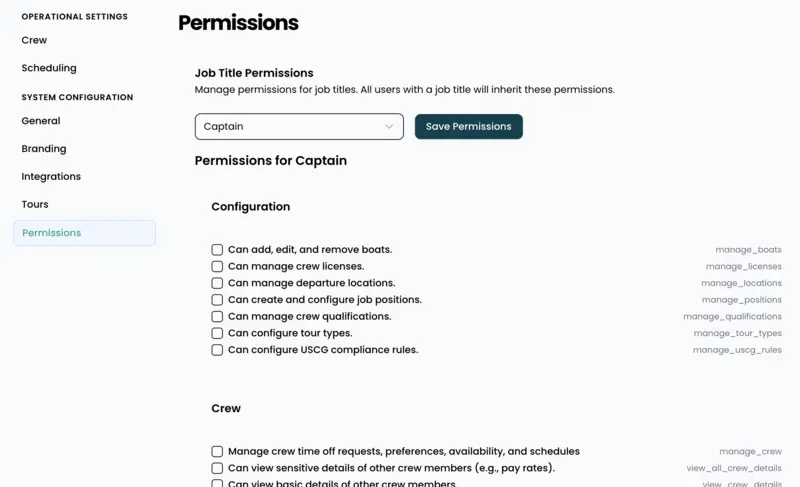
OpSkipper utilizes a hierarchical permission system designed to control user access and actions within the application. Permissions are granted at two distinct levels: Job Titles and Individual User Overrides.
How Permissions Work
Job Title Permissions (Base Level)
- Foundation of the System: Job titles are configured by you and serve as the primary foundation of the permission system.
- Automatic Inheritance: All users assigned to a specific job title automatically inherit the permissions configured for that title.
- Consistent Access Control: This approach ensures consistent access control for users performing similar roles within your organization.
- Examples: “Captain”, “First Mate”, “Deckhand”, “Office Manager”.
User Permission Overrides (Individual Level)
- Supplemental Access: Individual users can be granted additional permissions beyond those inherited from their job title.
- Non-Replacement: These overrides supplement (they do not replace) the permissions derived from their assigned job title.
- Special Cases: This feature is particularly useful for handling special cases or temporary access requirements.
- Clear Identification: Overrides are clearly marked with badges to indicate the source of the permission.
Managing Job Title Permissions
- Select a Job Title: Choose the desired job title from your configured list using the dropdown menu.
- Configure Permissions: Check the corresponding boxes for all permissions that users with this job title should possess.
- Permission Groups: Permissions are logically organized into categories to facilitate easier management.
- Save Changes: Click “Save Permissions” to apply your modifications to all users associated with that job title.
Key Points:
- Immediate Application: Changes made to job title permissions apply immediately to all users assigned to that title.
- Next Refresh: Users currently logged in will see these permission changes reflected upon their next page refresh.
- Caution: Exercise care when removing permissions, as such actions will affect all users with that specific job title.
Managing Individual User Overrides
- Select a User: Choose a specific user from the dropdown list.
- View Current State: Observe their assigned job title and the permissions they currently inherit.
- Grant Additional Access: Check the boxes to provide extra permissions beyond what their job title grants.
- Monitor Permission Sources: Badges will indicate whether permissions originate from the job title or from individual overrides.
Permission Indicators:
- “from job title” badge: Indicates a permission inherited directly from the user’s assigned job title.
- “override” badge: Signifies an additional permission granted specifically to this individual user.
- Disabled checkboxes: These permissions are already granted by the job title and cannot be removed at the individual user level.
Permission Categories
Permissions are organized into logical groups to streamline management:
- Core Operations: Basic system access and fundamental functionality.
- Administrative: User management, system configuration, and high-level controls.
- Scheduling: Crew scheduling and trip management functionalities.
- Reporting: Access to various reports and analytical data.
- Financial: Management of billing, payments, and other financial data.
- Data Management: Capabilities for importing, exporting, and manipulating data.
Best Practices
Job Title Strategy
- Start with Roles: Begin by defining permissions for job roles first, then address specific exceptions using individual user overrides.
- Descriptive Names: Use clear and meaningful names for job titles that accurately reflect roles within your organization.
- Regular Review: Periodically review and adjust job title permissions as your organizational needs evolve.
User Override Strategy
- Minimize Overrides: Use individual overrides sparingly to maintain a clear and manageable permission structure.
- Document Reasons: Keep a record of the reasons why specific users require additional permissions.
- Temporary Access: Consider if a temporary override should eventually be incorporated into a new or existing job title if it becomes a recurring need.
Security Considerations
- Principle of Least Privilege: Always grant only the minimum permissions users actually need to perform their duties.
- Regular Audits: Conduct regular reviews of user permissions, especially for operations involving sensitive data or system modifications.
- Monitor Changes: Track who possesses administrative permissions that allow them to modify the system’s configuration.
Common Scenarios
New Employee
- Assign the new employee to the appropriate job title.
- They will automatically inherit all permissions configured for that role.
- Add individual overrides only if absolutely necessary for their specific tasks.
Role Change
- Update the user’s job title within their user profile.
- Their permissions will automatically update to match the new role.
- Remove any existing user overrides that are no longer appropriate for their new role.
Temporary Access
- Utilize individual user overrides for short-term access requirements.
- Set a reminder to review and remove these overrides once they are no longer needed.
- Consider creating a temporary job title if multiple users require similar short-term access.
Permission Troubleshooting
- User Can’t Access a Feature: Check both their assigned job title permissions and any individual overrides.
- Too Much Access: Review individual user overrides and assess if their job title permissions are too broad.
- Inconsistent Access: Ensure that job title permissions are correctly set for the user’s role.
Important Notes
- Immediate Effect: Permission changes take effect immediately, though logged-in users may need to refresh their page to see them.
- Cascade Impact: Changes made to job title permissions will affect all users assigned to that job title.
- Override Supplements: Individual user overrides add to (they do not replace) the permissions granted by job titles.
- System Integrity: Some permissions may be essential for basic system functionality and cannot be removed.
Leave a Reply